
Mods and Custom Content in Planet Zoo 2
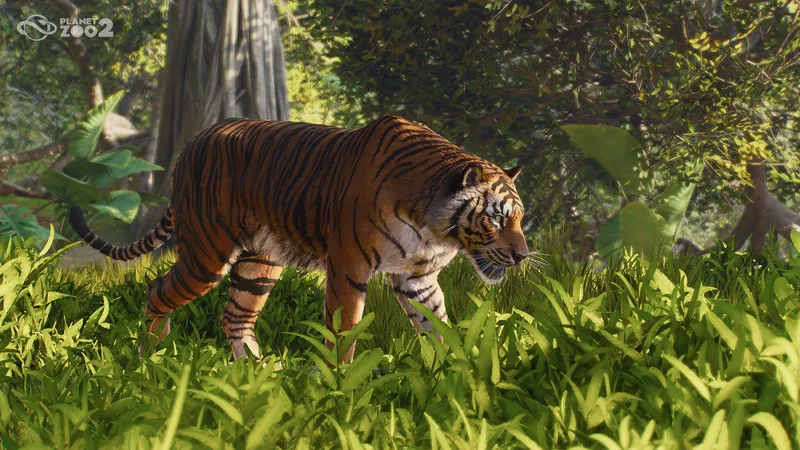
Use Frontier Workshop for shared blueprints and creations. Third-party code mods are a separate route: the Planet Zoo 2 Nexus page has mod-specific requirements and installation steps, including one Windows example below. Do not apply PC instructions to console.
Use Frontier Workshop for player-made creations
Frontier lists the Frontier Workshop on the Planet Zoo 2 Steam page: players can browse and download community-made blueprints and creations from across platforms, subscribe to favorites, and place them in their zoos. This is the clearest route for shared builds and creative assets; check the current game interface and the item itself before subscribing because an individual creation may have requirements or may not suit your zoo.
Third-party Planet Zoo 2 mods
Third-party mods are now listed for Planet Zoo 2 on Nexus Mods. One concrete example is Nature Brush Category Filters, version 1.0.4, updated October 14, 2026. Its author describes a filter bar for nature-brush templates and gives these Windows installation steps:
- Download the file from that mod’s own Nexus page and read its current requirements and version notes.
- Extract
NatureBrushFilter-1.0.4.zip. - Copy the included
NatureBrushFilterfolder into<game folder>/Win64/ovldata/. - Start Planet Zoo 2 and open the Nature Brush browser.
That path is from this specific mod’s instructions. It is a PC game-folder install and should not be treated as a console method or as the universal install location for every mod. Nexus labels this file “Safe to use”; that label is not a guarantee that every download is compatible with your game version or risk-free. Check the author’s page and files before each install, and use the original source rather than re-hosted archives.
Which route should you choose?
- Want a zoo blueprint or shared creation? Start with Frontier Workshop and follow the current in-game subscription flow.
- Want a third-party gameplay or interface change? Check a Planet Zoo 2-specific mod page, confirm its latest version and requirements, then follow that author’s exact instructions. The example above is for Windows PC.
- Looking for a Planet Zoo 1 mod? Do not assume it works in Planet Zoo 2. A page tagged for the first game is not evidence of compatibility with the sequel.
Check compatibility before installing
Use Frontier Workshop for shared blueprints and creations. Third-party code mods are separate: the linked Nexus page provides PC instructions for that specific mod, but does not guarantee that other mods work, that console installation is supported, or that a mod remains compatible after an update. For a blueprint, open Frontier Workshop and check its requirements before placing it. For code mods, follow the linked mod’s PC instructions for the listed game version and back up your save before changing game files.
Custom content
Choose a custom-content route
Frontier Workshop
Use Workshop for player-made creations.
Follow the current in-game Workshop route described in the guide.
Third-party mods
Check the individual mod page before installing.
Review its current version, requirements, and installation notes.
Related guides
Sources
- [1]Planet Zoo 2 official product listing — Frontier Developments / Steam
Current product, feature, edition, release, and system-requirement listing captured 2026-10-15.
- [2]Nature Brush Category Filters — Planet Zoo 2 — Nexus Mods / mod author Gamerkohl
Community mod page, version 1.0.4, updated October 14, 2026; contains a PC game-folder installation path. It is an example, not official Frontier support or a compatibility guarantee.
Was this helpful?
Thanks for the feedback!